

How to use Ask Roo
Ask about your tasks, add or change them, and see how you're doing, in plain words. Here's what Roo understands and how to get the most accurate answers.
Before you start
- Ask Roo uses Apple Intelligence on your Mac. Turn it on in System Settings → Apple Intelligence & Siri and let the model finish downloading.
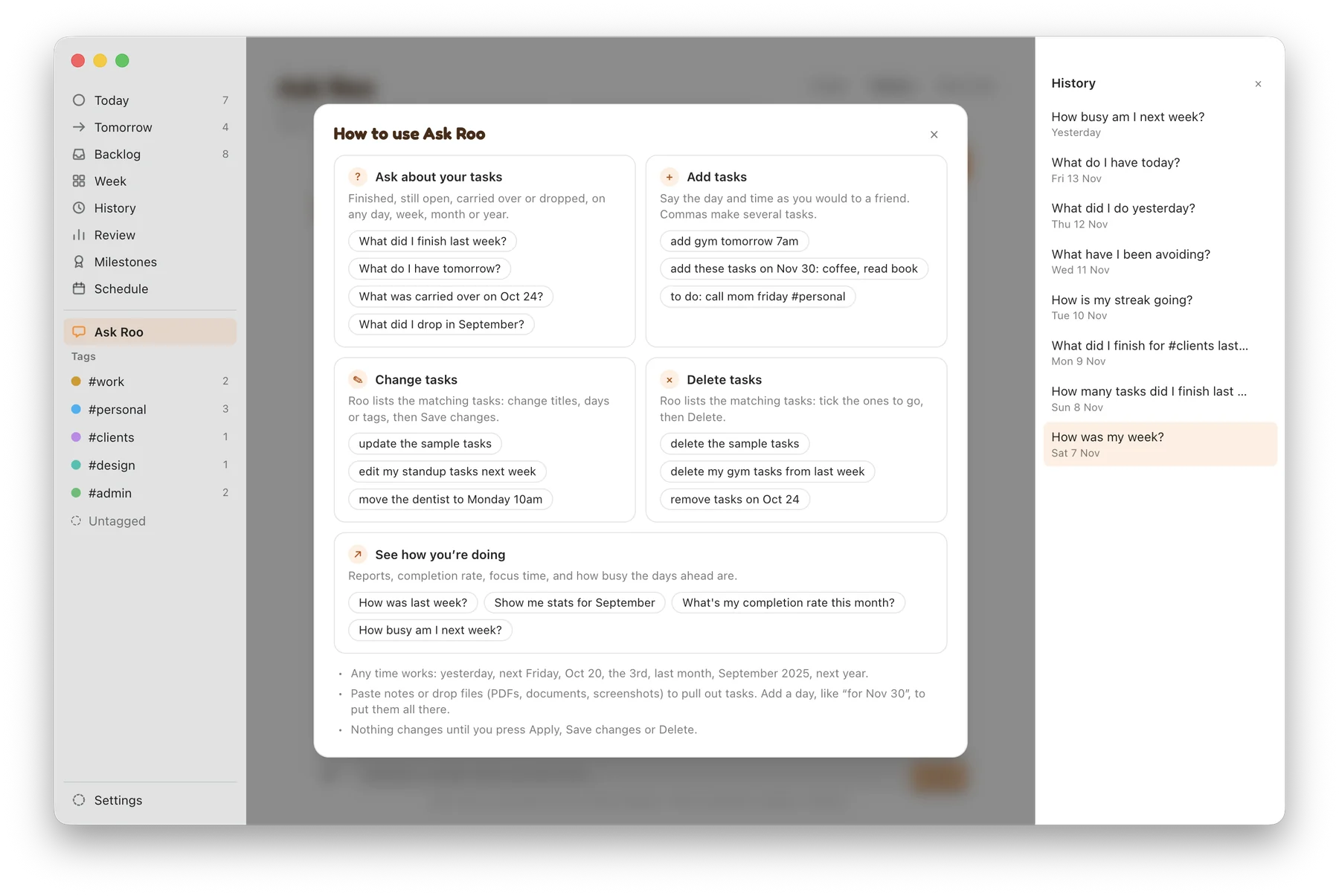
- Open Ask Roo in the sidebar. The Guide button at the top shows the examples below any time; click one to put it in the message box, then send it or edit it first.
- Answers come from your own task history. Nothing leaves your Mac.
- Nothing changes until you confirm. Adds, moves and deletes appear as a card first, and nothing is saved until you press Apply, Save changes or Delete.
Ask about your tasks
What you finished, what's still open, what was carried over or dropped, on any day, week, month or year.
- What did I finish last week?
- What do I have tomorrow?
- What was carried over on Oct 24?
- What did I drop in September?
- How many tasks are open?
- What am I avoiding?
- Which tags did I work on this week?
See how you're doing
Reports, completion rate, focus time, your streak, and how busy the days ahead are. Answers come with a chart when one helps.
- How was my week?
- How was last week?
- Show me stats for September
- What's my completion rate this month?
- How much did I focus this week?
- What's my streak?
- Is tomorrow too full?
- How busy am I next week?
Add tasks
Say the day and time as you would to a friend. Roo reads them the same way Quick capture does, so the same words give the same task in both places.
- add gym tomorrow 7am
- to do: call mom friday #personal (a
#tagfiles it under that tag) - add these tasks on Nov 30: coffee, read book (commas make several tasks; one day said up front applies to all of them)
- remind me to renew my passport next month. Lead-ins like add, remind me to, I need to and don't forget to all work.
- Paste notes or drop files (PDFs, documents, screenshots) to pull out tasks. Add a day, like for Nov 30, to put them all there. You tick the ones to keep before they're added.
If a task's time clashes with something already on your calendar, Roo tells you and offers the next free slot.
Change tasks
Start with what you want done, then name the task.
- Move: move the dentist task to Monday 10am push it to tomorrow. Reschedule, postpone and bump work too.
- Rename: rename the deck task to Final deck
- Tag: tag the invoice #work
- Add a note: add a note to the deck task: use the blue template
- Several at once: edit my standup tasks next week or update the sample tasks. Roo lists the matching tasks; change titles, days or tags, then press Save changes.
Delete tasks
- delete "Send invoice" for one task by its exact title.
- delete my gym tasks from last week remove tasks on Oct 24. Roo lists the matching tasks; tick the ones to go, then press Delete.
Backlog tasks NEW IN 1.1
- Ask Roo can see your Backlog. A Backlog task shows Backlog where a day would be.
- Questions about days, like what's left this week?, never count Backlog tasks, because they don't have a day yet.
- For now, Ask Roo's edit and delete lists leave Backlog tasks out. Change them on the Backlog screen (⌘9), or give them a day first.
Tips for accurate answers
- Name the time. Any of these work:
yesterday,next Friday,Oct 20,the 3rd,last month,September 2025,next year. "What did I finish last week?" is answered more precisely than "What did I finish?" - Use your tags as they're spelled in the sidebar, with the
#: What did I finish for #work this week? - One request per message. Ask a question or make a change, not both. To add several tasks, separate them with commas.
- Start changes with the action word: add, move, rename, tag, delete. That's how Roo knows you want something changed rather than answered.
- Name the task clearly. Use a word from its title (
the dentist task), or put the exact title in quotes ("Send invoice"). If several tasks match, Roo shows them so you can pick. - Follow up naturally. After Roo shows tasks,
it,that oneorthe second onerefer to them: rename the second one to Call mom tonight - Check where a number came from. Each answer ends with a How I got this line naming the days it looked at. Roo runs on your Mac and can make mistakes, so check important numbers in Review.
- If Roo can't place a question, it says so and suggests three questions it can answer. Try one of those, or rephrase with a time and a tag.

Still stuck?
See Support if Ask Roo doesn't respond at all, or email rynchrls.dev@gmail.com with the question you asked and what Roo answered.